


FAQ Categories
How do I install Sentech SDK (v1.1.1 or later)?
Follow the steps below:
(1) Run the Sentech SDK installer.
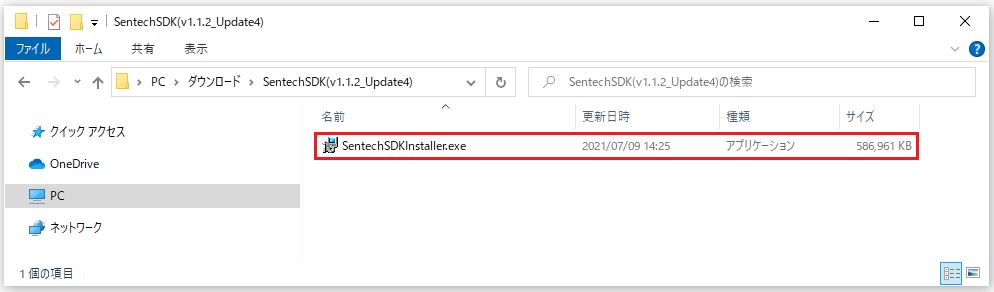
(2) Select Install.
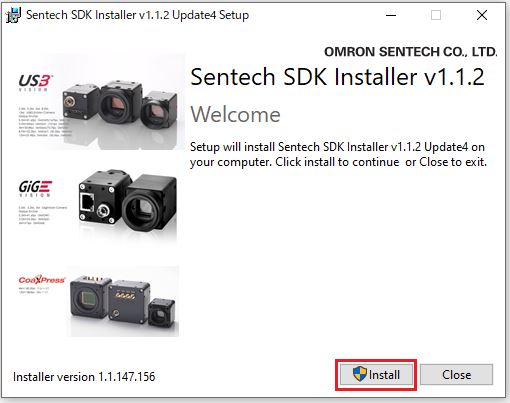
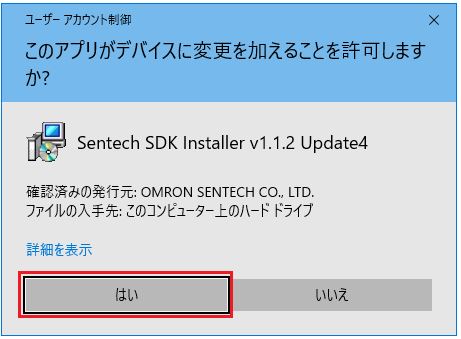
If a User Account Control (UAC) prompt appears during installation, select Yes.
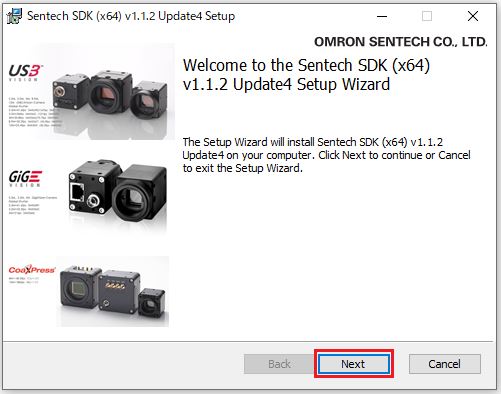
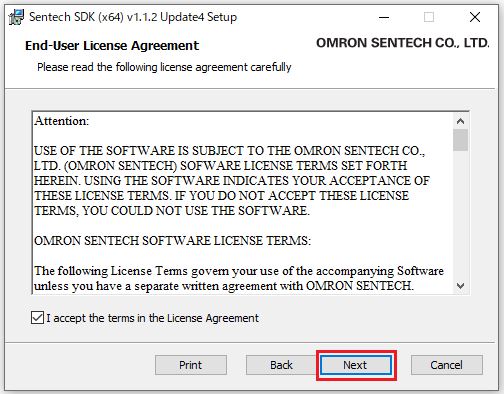
(3) Click Next.
(4) After confirming the contents of “Attention:”, please read “I accept the terms in the License Agreement”.
Check the checkbox and select “Next”.
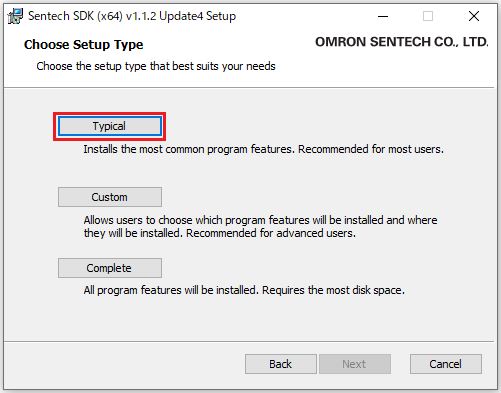
(5) Select the installation type (Complete installation is recommended):
Typical
This is a basic function installation.
Applications (StViewer, etc.) used for demonstration purposes or to check camera operation will be installed, though,
Sample programs and other files will not be installed.
Custom
Custom allows you to select items to be installed.
Complete
Install all applications (StViewer, etc.) and SDK-related files.
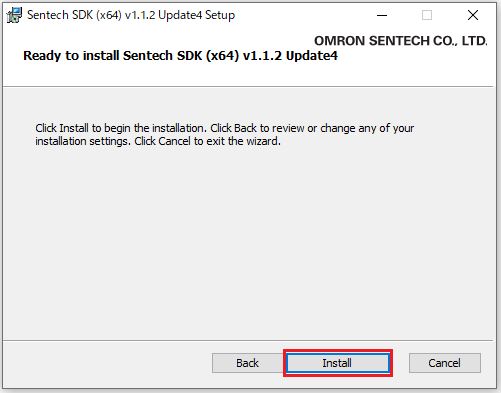
(6) Click Install to begin installation.
The installation will now begin.
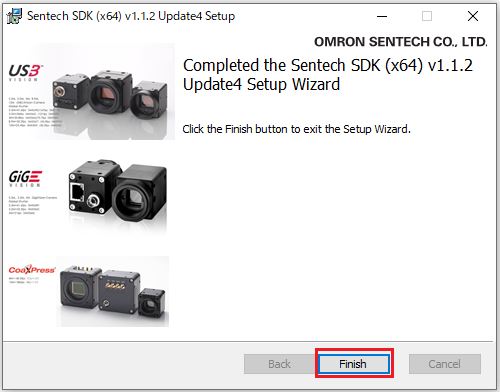
(7) Once installation is complete, click Finish.
Contact
For any questions about our products and services,
including specifications and technical support, please feel free to contact us.
Headquarters,
Sales Department+81 46236-6660
Newsletter Subscription
Stay up-to-date with our latest news, including new product releases,
information on discontinued products, and upcoming trade shows.