


FAQ Categories
In the port settings of the communication software CLCtrl2, the Camera Link API for the board in use is not displayed.
In the port settings screen, only the DLLs (Camera Link APIs) that CLCtrl2 has detected, such as “clserxxx.dll,” are displayed.
Even if the board manufacturer’s software is installed correctly, the DLL may not be detected.
If the board is not detected in the port settings screen, copy the corresponding “clserxxx.dll” file into the folder where CLCtrl2.exe is located, and then reopen the port settings screen.
You can check the folder where CLCtrl2.exe is located by right-clicking on the CLCtrl2 shortcut, selecting Properties, and checking the displayed path.
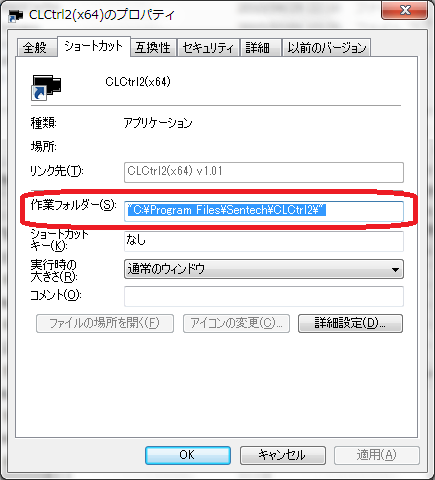
If the installation path was not changed during installation, the default folder is:
C:\Program Files\Sentech\CLCtrl2
Important notes when copying DLL files:
If you upgrade the board manufacturer’s driver, replace the DLL with the new version as well.
Use the 32-bit (x86) DLL for CLCtrl2(x86), and the 64-bit (x64) DLL for CLCtrl2(x64).
For details about the DLL file, please consult the respective board manufacturer.
Contact
For any questions about our products and services,
including specifications and technical support, please feel free to contact us.
Headquarters,
Sales Department+81 46236-6660
Newsletter Subscription
Stay up-to-date with our latest news, including new product releases,
information on discontinued products, and upcoming trade shows.